Are you a practising English tutor?
We make your teaching easier — and more effective.
Free AI student-management tools for practising tutors. Set WritePath Daily Success as the homework, and two things come free with it: a dashboard that gives you a bird’s-eye view of how every student is really performing, and teaching material generated on the spot from their own answers.
Free, with no conditions · No lock-in · Parents control every link
Step 1
WritePath
Daily Success
Daily weekday homework
Step 2
AI analyses every answer
Your dashboard
Step 3
Tailored lesson material
Produced on the spot
Registration
Register as an Educator Partner.
One form, two minutes, and no account needed first — registering creates your WritePath account and your educator profile together.
Before you start
We'll email you to confirm your address. Nothing is created until you click the link in that email — your Educator ID, your website account and your five family discount codes all arrive the moment you do.
Your details
WritePath Education · GISE Australia Pty Ltd trading as WritePath Education · ABN 70 664 663 049 · writepatheducation.com
Questions before registering? hello@writepatheducation.com
How is it easy and effective?
One act, two jobs.
Easy
One thing to set, nothing to prepare
You stop writing homework. WritePath Daily Success is the homework: already built, already sequenced, already marked.
Then the part tutors don’t expect. Setting it is your preparation. While your student works through the week, the material for your next session assembles itself — so you arrive to a lesson you didn’t write, about a week you didn’t have to reconstruct.
Effective
You teach what they actually got wrong
Not a syllabus. Not a guess. Not what you remember from last time.
On session day the report shows you everything they did and exactly where it broke down, and the lesson is built from those questions and their answers. The hour goes on the thing that’s genuinely holding them back — and the family watches that hour land in their inbox afterwards.
Session day
Then the lesson — on the spot.
Sitting in that report is Teaching Priorities: two to four things worth teaching next, found by reading every wrong answer in the period and naming the pattern behind them, with the modules cited so you can check the evidence yourself.
Click Open Learning Content, and the lessons generate right there. The first is on screen in well under a minute; the rest build behind it, so the next one is ready before you are.
Each lesson is fifteen minutes of real teaching material:
- an objective — what this lesson is for
- key terms, defined in student language
- a ground-up explanation of the concept, not a reminder that assumes they had it
- worked examples — and the first one quotes your student’s own answer, with the original question restated above it
- a short quiz, with the answers collapsed at the end so they attempt before they see
And it’s on the screen while you’re sitting with them. You didn’t prepare it last night. You generated it in the session, out of the week they just had, and you teach it together now.
1 / 8
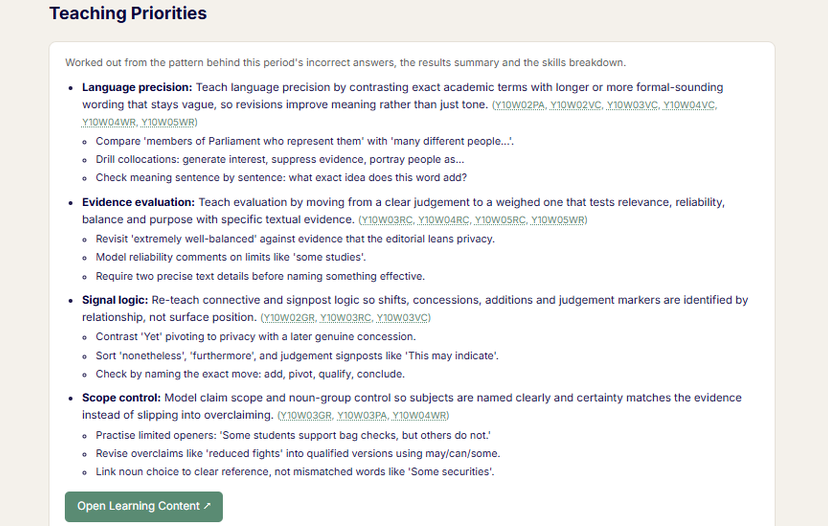
Worked out from the pattern behind this period’s wrong answers — not from a template.
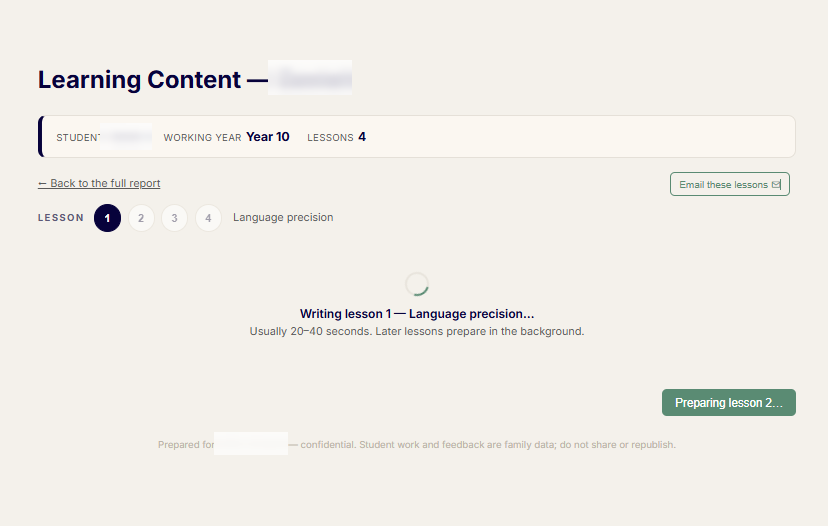
Usually twenty to forty seconds. The later lessons build in the background while you read the first.
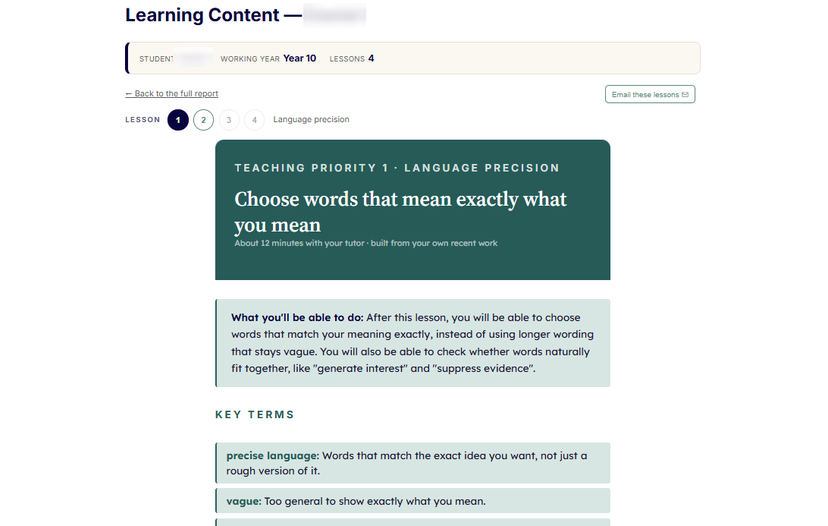
It opens on the priority, what they will be able to do, and the words they need.
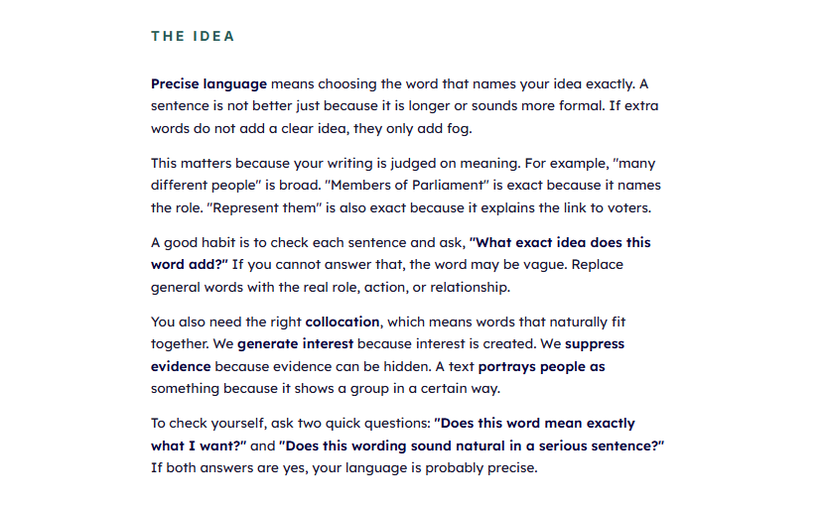
The concept is built, not restated — so you can teach it rather than read it out.
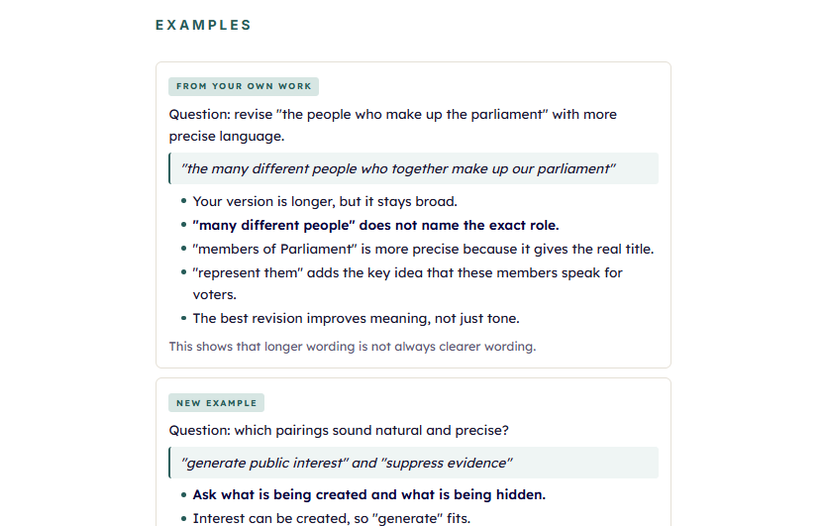
One example is their own work, improved. The next is new, so they have to transfer the skill.
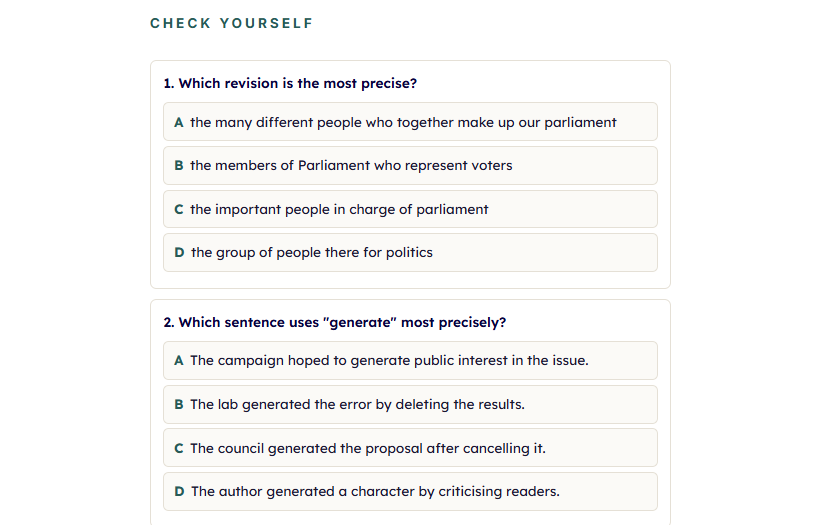
Short enough to do in the session, and it tells you straight away whether it landed.
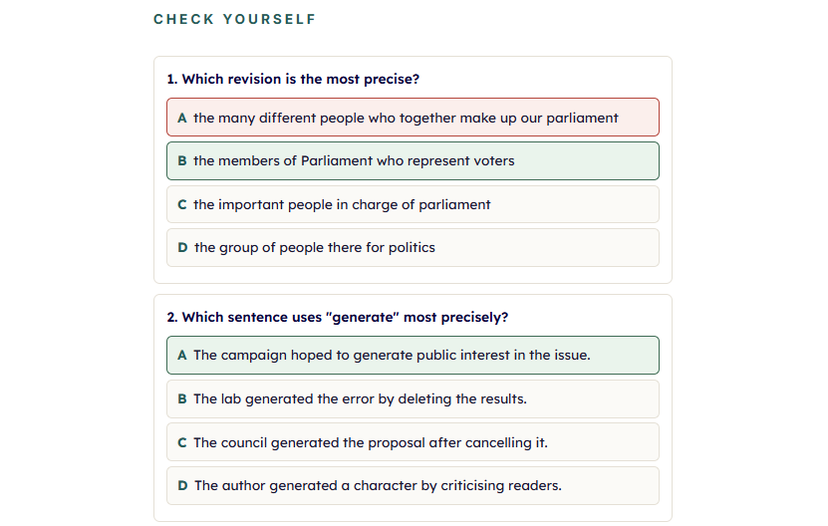
Marked in front of them, so the correction happens while it still matters.
Swipe left or right to move through the screens.
The homework
Work you’d happily put your name to.
The homework you set is a reflection on you, so it has to be good before it’s convenient.
Daily Success is a daily online English program for Years 5 to 12 — one short module a day across reading comprehension, writing, vocabulary, grammar and peer assessment. Nothing takes long enough to be abandoned, and it runs every day, not just the day before a session.
Every module is marked with real feedback, not a score. Reading and vocabulary come back question by question with the marker’s comment on what went wrong. Writing comes back as a full mark-up: the task, their piece, personalised feedback strand by strand, and English Notes with the corrections marked through their own sentences.
And every answer they give — right or wrong — becomes the evidence you teach from. That’s the whole trick: one thing to set, and it does two jobs.
What if they haven’t done it?
It happens. They’re teenagers.
Open a module and do one together in the session. You see how they think in real time, the work is captured exactly the same way, and the report and the lesson build from it just as they would have. An hour spent that way is a full hour of teaching — not a wasted one.
Session day
Two minutes of reading. One click. Your lesson exists.
Your dashboard
Sign in, and your learners are listed.
Every student whose parent has linked them to you. Pick one, and you’re in their report.

The report, in two minutes
It opens on the period since you last met.
“Since last session” is anchored to the session date you recorded at the end of your last lesson. One page:
- Recent activity — every module they completed, by date
- Results summary — how the period went
- Skills breakdown — reading, writing, vocabulary, grammar and peer assessment, scored by skill
- Strengths and focus areas — what’s landing, what isn’t
- Writing review — their piece, in the same format the family received
That’s the read. You now know the week without asking anyone how it went.
1 / 11

“Since last session” is anchored to the date you recorded at the end of your last lesson.

A minute or two. Every submission in the period is read fresh, not cached.
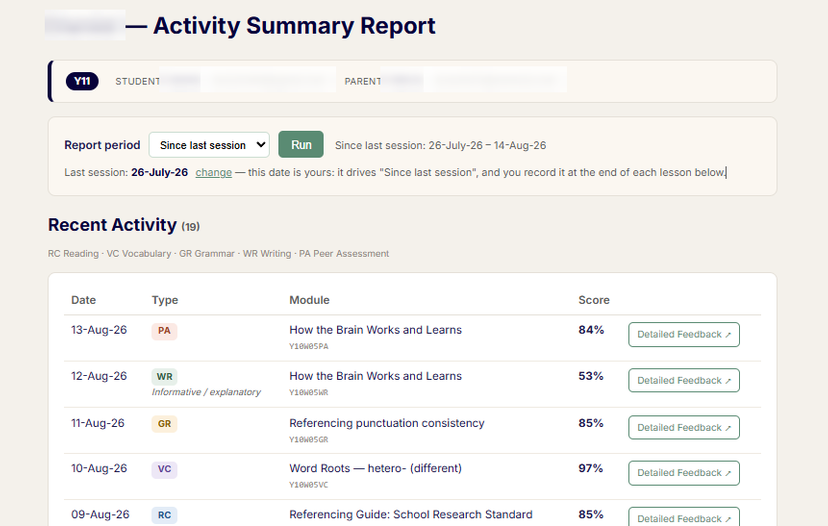
Every module they completed since you last met, by date, with the score and a link to the full detail.
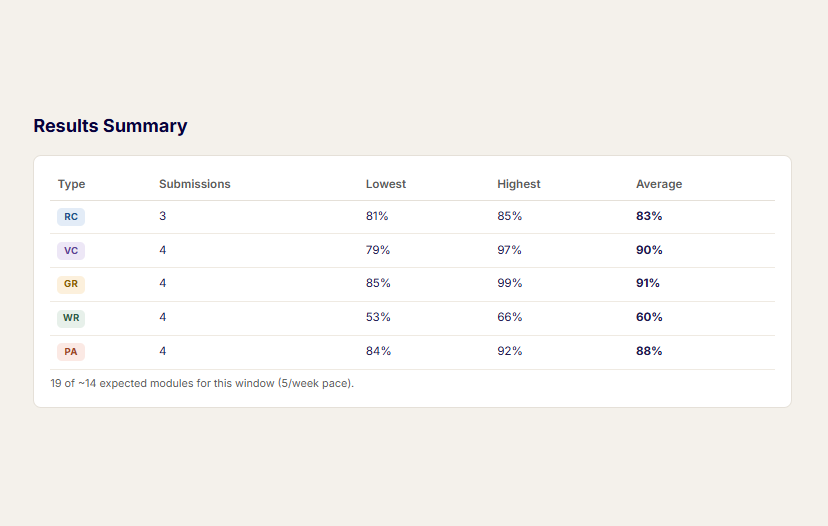
The shape of the period at a glance — and which module type is carrying the weakness.
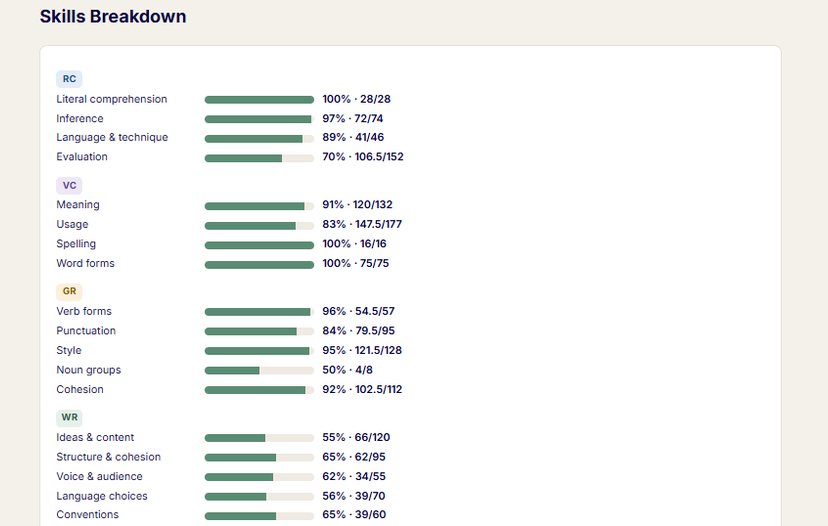
Strand by strand, with the raw counts behind each percentage.
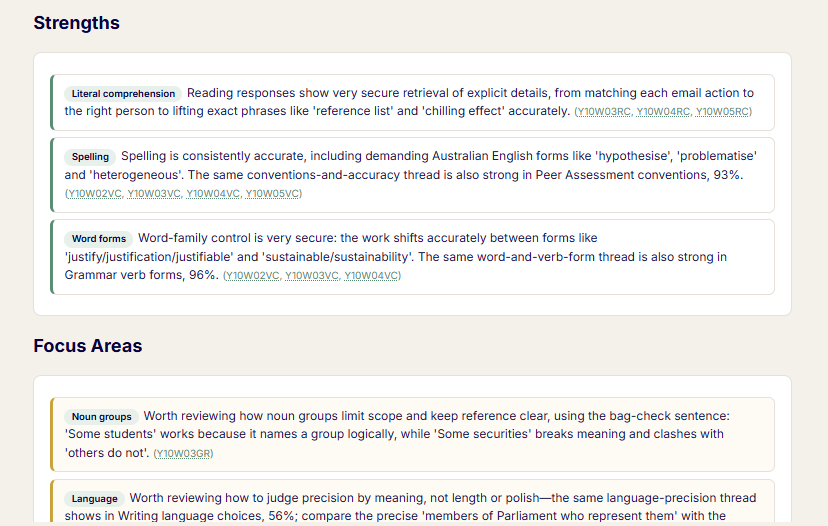
Every claim carries the module codes it came from, so you can check it.
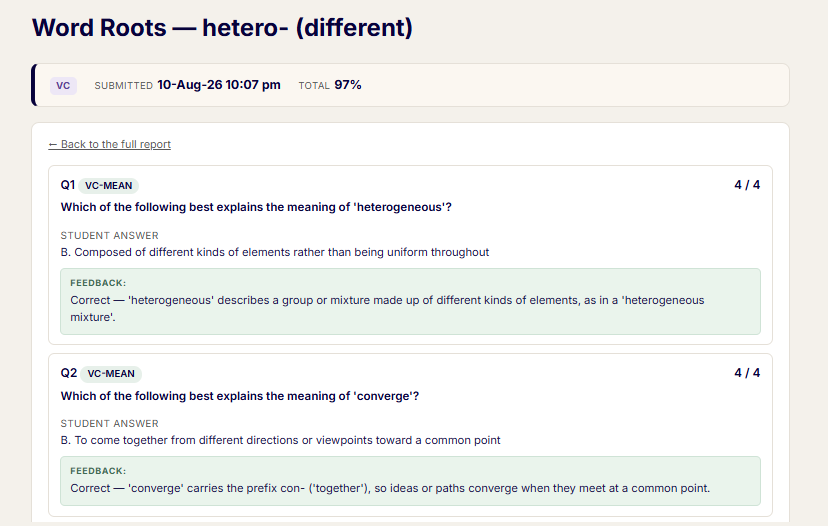
Nothing is summarised away. If you want question seven, question seven is there.
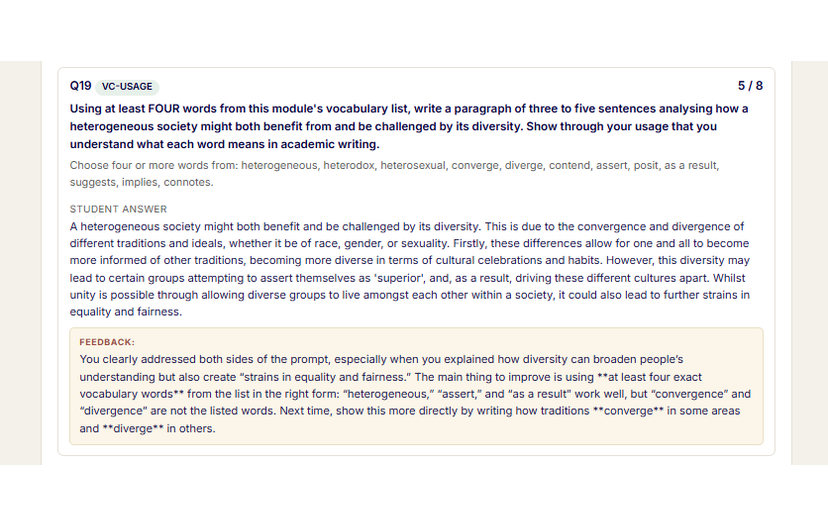
Written answers appear complete — their words, then the marking.
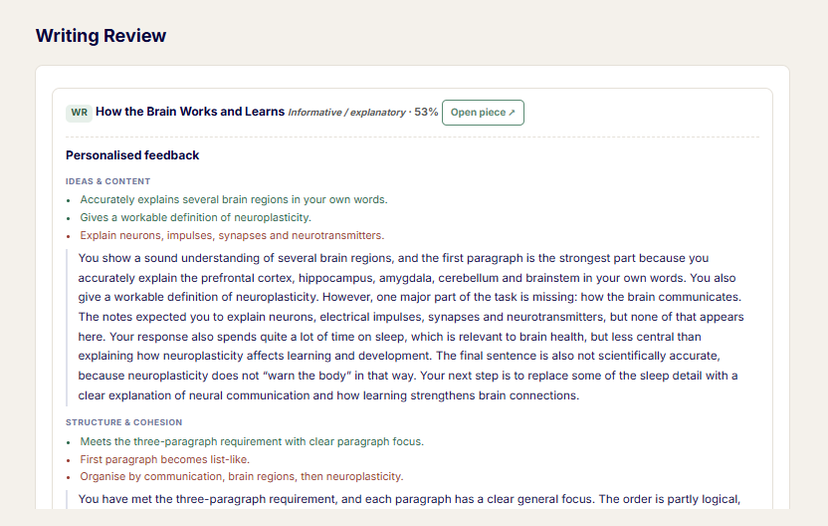
The writing task opens as the complete mark-up, not a score.
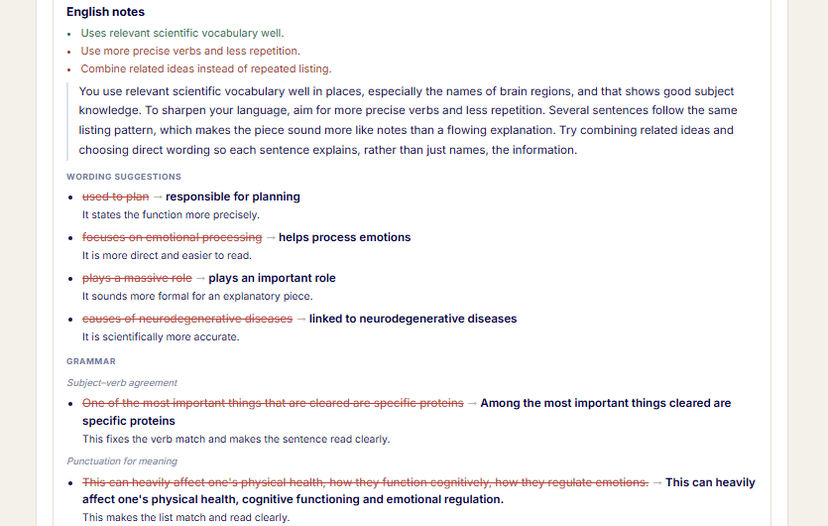
The corrections run through their own sentences — you can see where it came apart.
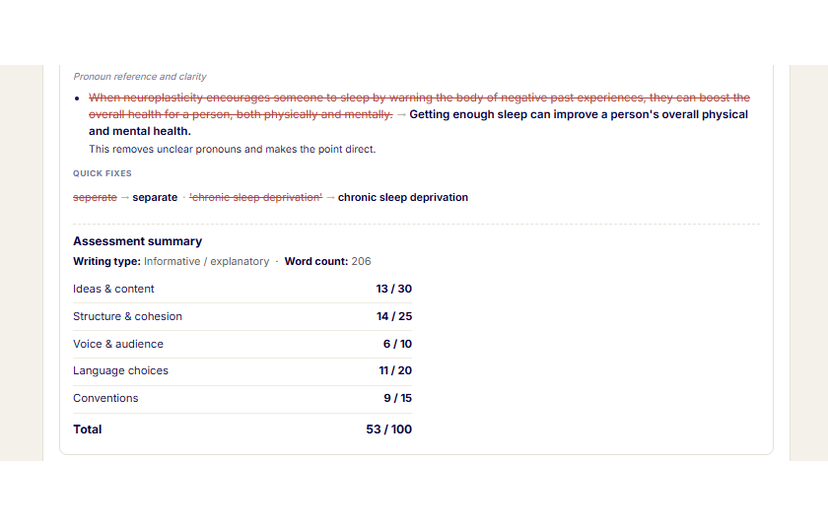
It ends on the same five criteria the family sees, so you are both looking at one thing.
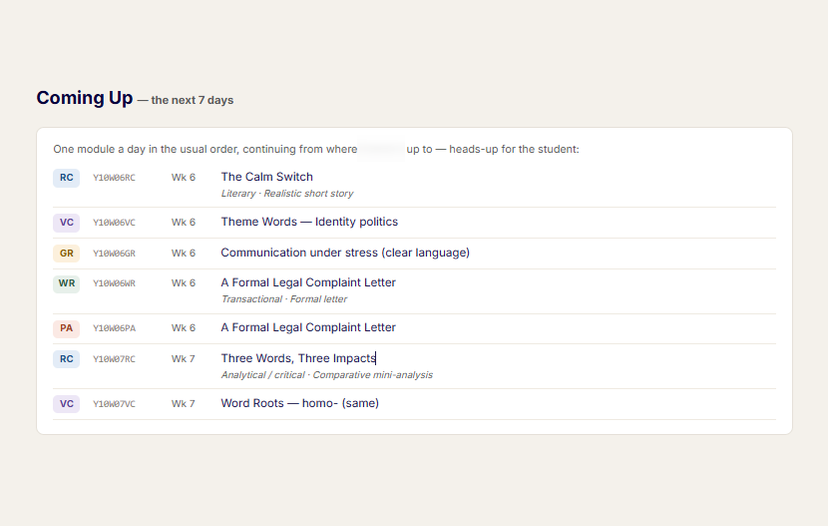
So you can set the session against what they are about to meet, not only what they have done.
Swipe left or right to move through the screens.
Cost
Nothing. Not now, not later.
The toolkit is free for every registered Educator Partner — however many students you have, including none. There’s no fee, no trial that runs out, and nothing to qualify for. Register, link a student, use the whole thing.
There’s nothing paid to you either, and that’s deliberate. Your recommendation to a family carries weight precisely because you have nothing to gain from making it.
Five codes for your families
What you do get is something to give.
Every Educator Partner is issued five single-use discount codes: 25% off a WritePath yearly plan, one per family, valid six months.
25% is the deepest discount WritePath offers anywhere — a tutor’s code is genuinely the best price a family can get. Which makes handing one over a favour, not a pitch.
Before you register
Questions tutors ask.
Do my students need to be on WritePath? +
Yes — the toolkit runs on their daily work, so a student needs a Daily Success membership ($39/month) for you to see anything. Most tutors start with one or two families who are already members, then introduce the rest. Your five 25% codes exist for exactly that conversation, and the Educator ID email we send you is written to forward straight to a family.
How do I raise this with parents? +
You don’t sell anything. The parent creates the link themselves from their own account, using your Educator ID — they can see exactly what you’d have access to, they’re copied on every lesson email, and they can end it at any time. Most tutors find it an easy conversation: the family already pays for daily practice, and you’re offering to teach from it.
You don’t have to explain it from scratch either. We give you a short brochure written for parents — what the link lets you see, what stays in their control, and how to set it up — so you can simply pass it on and let them read it in their own time.
Is it really free? +
Yes. There is no fee at any point, no card on file, and no number of students you have to reach. WritePath’s return is indirect: tutors who use the toolkit tend to bring families to Daily Success and keep them there. That’s the whole business case, and it only works if the toolkit is genuinely good.
How is AI used, and is my child’s data safe? +
AI generates the Teaching Priorities and lessons from your child’s own recent answers — that’s what makes them specific instead of generic. The educator reviews AI-generated material before using it; it may contain errors, and it’s an aid to their teaching, not a replacement for it. Only your linked educator can see your child’s reports, access is limited to a two-month window, every page is watermarked, and your child’s work is never used to train AI models. You can end the link at any time, and access stops immediately.
Do I have to change how I teach? +
No. The report is a two-minute read and the lesson is material, not a script — use it as it is, use half of it, or use it as the starting point for your own hour. The only new habit is recording the session date at the end of a lesson, which is what makes “since last session” mean something.
What does it cost the family? +
Nothing beyond their membership — linking an educator never changes a family’s price. Your codes can lower it: 25% off a yearly plan is the best price WritePath offers.
Can I cover the cost for my students myself? +
Yes. Some tutors would rather carry the memberships themselves and fold them into their own fee than ask each family to pay separately. Email hello@writepatheducation.com and we’ll set up a simple monthly invoice at a discounted rate — one invoice, however many students you sponsor.
We look after the rest. We send each family their invitation, and when you tell us a student has finished, we cancel that place — so you never manage sign-ups or cancellations yourself, and you’re never invoiced for a student you’ve stopped teaching.
What if I stop, or a family stops? +
No lock-in either way. You can deregister with an email, and parents can end a link instantly. Your client relationships stay yours — WritePath will never use program data to solicit a family linked to you away from you, and that’s in the terms in writing.
Three steps
Register once. Teaching from evidence within a fortnight.
Register at the top of this page
One form, two minutes, no account needed first — we email you a confirmation link, and nothing is created until you click it.
Give your Educator ID to a family
The email we send you is written to be forwarded: it carries your ID and the linking steps in the parent’s own words. They enter it in their account; you accept.
Set the homework and run your first report
Once they’ve had a week on Daily Success, open their report on session day and click through to the lesson. That’s the whole loop, and you’re in it.